

If you’re trying to reach home security cameras, a Plex server, or remote desktop behind a Starlink connection, you’ve likely hit a wall: there’s no port forwarding setting in the app, because there’s nothing to forward to.
The short version: Starlink Residential and Roam plans don’t offer a public or static IP. But most people asking for a “static IP” don’t actually need one, they need remote access, and there are several ways to get that without paying for a plan upgrade. Whether you’re a casual user wanting remote access to a home server or a business needing a site-to-site tunnel, this guide covers every method, plus what the official upgrade path actually gets you (and doesn’t).
Key Takeaways
- Residential and Roam: stuck behind CGNAT. No public IP, no port forwarding, full stop.
- Local Priority and Global Priority plans: can turn on a public IPv4 address. It’s not technically static (it can change), and even with it on, the stock Starlink router still can’t port-forward, you need your own router.
- Best for most home users: Tailscale or a Cloudflare Tunnel. Free, no router changes, works within Starlink’s architecture rather than fighting it.
- IPv6 works on every plan, including Residential, but the stock Starlink router doesn’t support firewall or port-forwarding rules for it either, you’d still need a third-party router.
The Core Problem: What Is CGNAT?
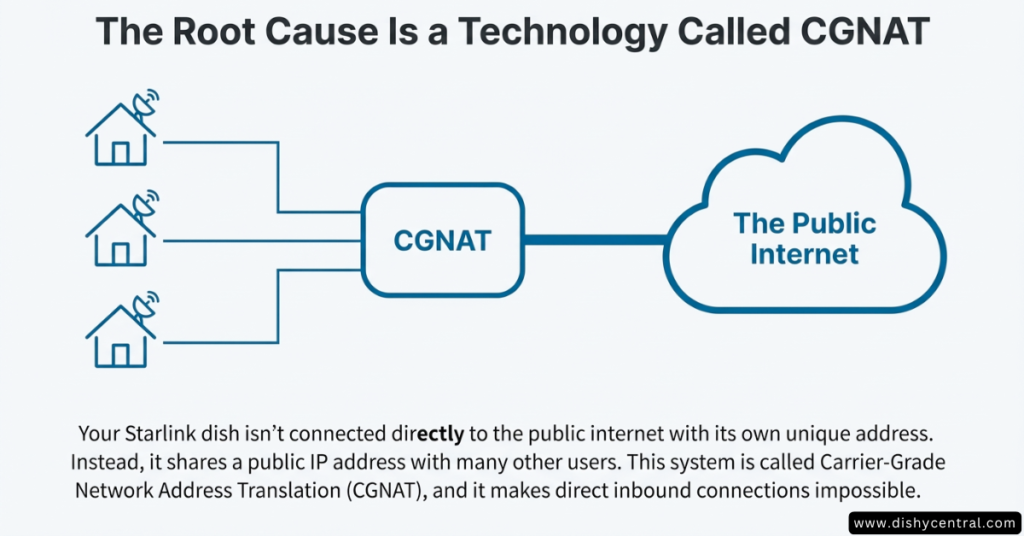
Starlink’s default IPv4 setup uses CGNAT (Carrier-Grade Network Address Translation), private addresses from the 100.64.0.0/10 range, shared across many customers.
The Apartment Building Analogy
- A normal ISP connection: your own house with a unique street address (public IP). Traffic can come straight to your door.
- Starlink on the default policy: a huge apartment building sharing one street address. You have an apartment number (internal IP) the outside world can’t see; the front desk has no way to know which unit incoming traffic is for.
You can’t open a port because the address isn’t uniquely yours to open, opening it would affect everyone else sharing that same public IP.
Method 1: The Official Way (Local/Global Priority)
If you’re willing to pay, Starlink has an official option, though it’s a public routable IP, not a true static one in the traditional sense.
Who It’s For
- Businesses that need a whitelist-able or site-to-site VPN endpoint
- Anyone who’d rather pay than manage a technical workaround
Eligibility and Cost
The public IP toggle is available on Local Priority and Global Priority service plans only, per Starlink’s own documentation, not on Residential, Residential Lite, or Roam. Starlink doesn’t publish one flat global price: Local Priority (in-country use) runs roughly $65-165/month depending on data tier and location; Global Priority (worldwide, including maritime) starts around $250/month. Check your account for the exact current price where you are.
How to Turn It On
- Log in at starlink.com/account
- Go to Account > Subscriptions
- Select the service line you want to change
- Select Edit next to IP Policy
- Choose Public IP, then Save
- Reboot your Starlink
The Catch Most Guides Skip
Turning on Public IP is not enough by itself. Per Starlink’s own support documentation: “Starlink WiFi routers do not support port forwarding or firewall rules for IPv4 or IPv6.” That’s true even with the public IP policy active. To actually forward a port or run a service, you need bypass mode and a third-party router doing the firewall/NAT work, the public IP alone just gives that router something routable to work with.
Is It Actually Static?
- It’s dynamic in principle: assigned via DHCP, and Starlink explicitly says truly static IPs aren’t available.
- It’s sticky in practice: a reservation system keeps the same address across reboots and power-offs; it can still change if you relocate the dish or during network changes.
- The fix: pair it with a DDNS service (No-IP, DuckDNS, etc.) so anything pointing at your connection updates automatically if the address ever does change.
| Feature | Residential / Roam | Local / Global Priority |
|---|---|---|
| IP type | CGNAT (private, shared) | Public routable (with a 3rd-party router) |
| Port forwarding on stock router | No | No, even with Public IP on |
| Starting price | $55-$175/month | ~$65-165/month (Local), from ~$250/month (Global) |
| Ideal for | Streaming, browsing, general use | Site-to-site VPNs, hosted services with a compatible router |
Method 2: Overlay Networks (Best for Most Home Users)
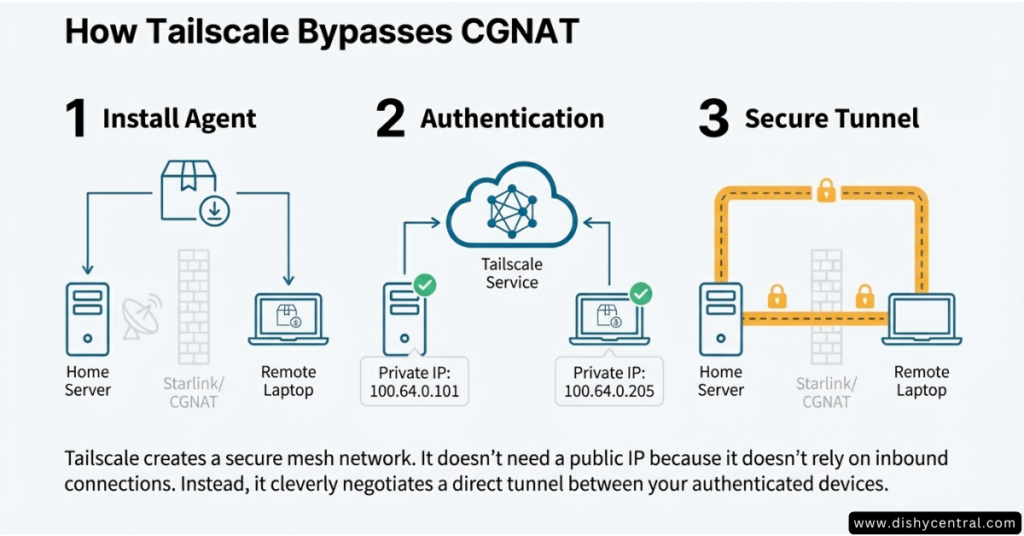
Rather than opening ports, an overlay network creates an encrypted tunnel between your devices that works straight through CGNAT, no plan upgrade, no router changes.
Tailscale
A zero-config VPN built on WireGuard.
- Install Tailscale on your home server (PC, Mac, NAS, Raspberry Pi)
- Install Tailscale on your phone or laptop
- Sign in with the same account on both
- Your other devices can now reach your home server as if they were on the same network, from anywhere
Pros: free for personal use, no router configuration, encrypted by default. Cons: only works from devices with the app installed, not a public computer you don’t control.
Cloudflare Tunnel
Better if you want to host something reachable from any browser, a personal site, Home Assistant, etc., without installing an app on every device that visits.
- Buy a domain name
- Install “cloudflared” on your home server
- Cloudflare acts as the public front door and tunnels traffic back to your Starlink connection
Method 3: Router-Level Solutions
If you can’t install software on the device you need to reach, an old DVR or an IoT device, you need a router-level fix instead.
Dedicated-IP VPN
- Some VPN providers sell a dedicated-IP add-on
- Pair it with a VPN-capable router (e.g. a GL.iNet travel/home router, or Asus running third-party firmware)
- The router stays connected to the VPN, and the provider forwards ports down that tunnel to your network
VPS Tunneling (DIY)
More setup, more control:
- Rent a small VPS (a few dollars a month from a provider like DigitalOcean or Linode); it has a real static IP
- Run a WireGuard server on the VPS
- Connect your home router (running OpenWrt, pfSense, or similar) to the VPS as a client
- Forward traffic on the VPS to your home server through the tunnel
Method 4: IPv6
Starlink supports native IPv6 on every plan, including Residential and Roam, and IPv6 doesn’t use CGNAT: each account gets a real, routable IPv6 /56 prefix for the LAN and a /64 for the WAN.
The Catch
The stock Starlink router doesn’t support firewall or port-forwarding rules for IPv6 either (same limitation as IPv4). Getting real use out of IPv6 for inbound connections means:
- Bypass mode, and
- A third-party router capable of requesting IPv6 prefix delegation (Unifi, MikroTik, pfSense, OPNsense, and similar)
Once that’s set up, your devices can have genuinely public IPv6 addresses, which also means they’re directly exposed if you configure firewall rules incorrectly; this isn’t a beginner-friendly path.
A Few Things That Apply on Every Plan
- Outbound SMTP (port 25) and SMB (port 445) are blocked for all customers, regardless of plan, a security policy, not a bug. If you’re trying to self-host email or an SMB file share reachable from outside, this will block it.
- The stock router never supports port forwarding, on any plan, on any protocol; every method on this page that needs inbound access ultimately routes through your own router in bypass mode.
Which Solution Fits You?
| Need | Best fit | Rough cost |
|---|---|---|
| Remote access to Plex/Jellyfin | Tailscale | Free |
| Reach Home Assistant or a personal site | Cloudflare Tunnel | Free (domain optional) |
| Old device with no app support (DVR, NVR) | Dedicated-IP VPN + compatible router | ~$10/month |
| Business site-to-site VPN, whitelisted IP | Local or Global Priority | ~$65-250+/month |
| Hosting a public game server | VPS tunnel or IPv6 (advanced) | ~$5/month+ |
Frequently Asked Questions
Can I call Starlink support and ask for a static IP?
Not on Residential or Roam; there’s no manual override, support will point you to a Local or Global Priority upgrade. Even that upgrade gives you a public (not truly static) IP, and you’ll still need your own router to actually use it for port forwarding.
Does the Flat High Performance dish come with a static IP?
No. Hardware doesn’t determine your IP behavior, your service plan does. You can have premium hardware on a Residential plan (still CGNAT) or Standard hardware on a Priority plan (public IP available).
Is a public IP the same as a static IP?
Not technically. A static IP is fixed and manually configured; it never changes. A public IP on a Priority plan is assigned automatically and is reachable from the internet, but Starlink is explicit that it isn’t guaranteed to never change (a reservation system just makes it unlikely to, in normal use).
Does a static or public IP make gaming better?
Not for latency, that’s set by the satellite link itself, not your IP type. A public IP can help with “strict NAT” issues in some games and platforms without needing a full VPN workaround, though.
Why does my traffic seem to come from the wrong city or state?
That’s normal for CGNAT and Starlink’s Point-of-Presence routing; your traffic may exit to the internet from a PoP that isn’t physically near you. It isn’t something you can configure around on Residential or Roam.

