

“Router Unreachable” means your device can’t talk to the Starlink router itself, which is different from “no internet.” The router might be fine but your phone or laptop can’t find it, or the router itself has a real problem. Most of the time it’s a quick fix.
Key Takeaway
- Try the basics first. A proper power cycle, checking the router’s light, and reconnecting to Wi-Fi from scratch resolve most cases.
- Hardware matters. Router lights and factory reset steps differ by generation (Router Mini, Router 3, Gen 2, Gen 1), check yours before following generic advice.
- A violet light means bypass mode is on (Router Mini and Router 3 only), not an error; if you didn’t turn bypass mode on, that’s worth knowing before you troubleshoot further.
- Factory reset is a real last resort. It clears your Wi-Fi name, password and any custom settings, and isn’t available through the app while in bypass mode.
The Quick Checklist
Before anything else, try these in order:
- Check for outages on cellular data. Switch your phone off Wi-Fi, open the Starlink app, and check for alerts or known issues before troubleshooting further.
- Power cycle properly. Disconnect both ends of the power cable (and the power supply, if separate), leave everything unplugged for at least 10 seconds, then reconnect. Starlink’s own instructions call for 10 seconds minimum; waiting longer doesn’t hurt, but you don’t need the long unplug times some guides claim.
- Reconnect to Wi-Fi from scratch. “Forget” the Starlink network on your device, then reconnect, rather than trusting a cached connection.
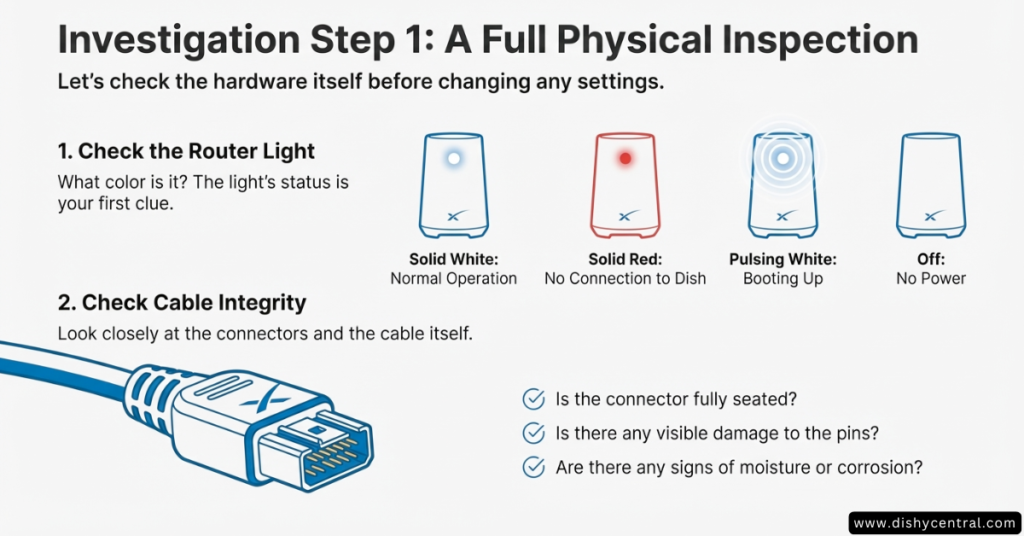
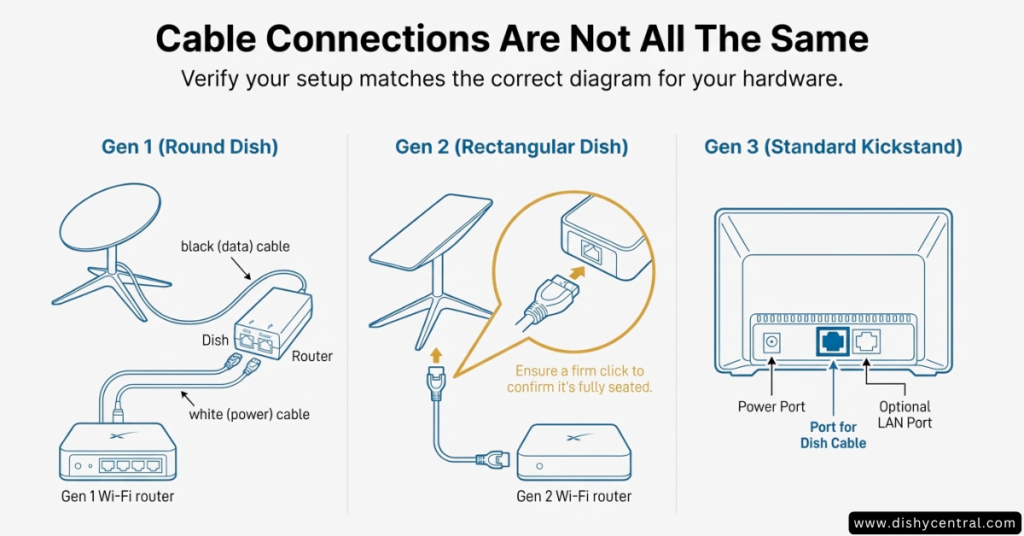
- Check the physical cable. Follow it from the dish to the router or power supply, and make sure both ends are fully seated. Starlink recommends only official cables; third-party cables aren’t covered by warranty.

What “Router Unreachable” Actually Means
Think of the router as the front door to your home network. “Unreachable” means your device can’t get to that door, either because your device isn’t properly connected, or because the router itself isn’t responding. That’s a different problem from the dish being unable to reach satellites (Starlink calls that “offline”), though Starlink’s own troubleshooting groups both under the same general flow since the first fixes are the same.
Addresses Worth Knowing
- 192.168.1.1 or dishy.starlink.com — your router’s local web interface. If you can load this in a browser while connected to Starlink Wi-Fi, your router is actually reachable, and the problem may be with the app rather than the network.
- 192.168.100.1 — the dish’s own debug/statistics interface. If you’re using your own router (bypass mode), you need a static route to reach it; see the bypass mode section below.
What Your Router’s Light Means
Starlink’s light behavior genuinely differs by hardware, don’t rely on advice written for a different generation than yours.
| Router | Solid white | Blinking/flashing white | Red | Violet | No light |
|---|---|---|---|---|---|
| Router Mini | Connected (turns off after 1 hr) | Trying to connect | Not connected (after ~20 min trying) | Bypass mode is on | No power (or connected, timed out) |
| Router 3 | Connected (turns off after 1 hr) | Trying to connect | Not connected (after ~20 min trying) | Bypass mode is on | No power |
| Gen 2 Router/Mesh | Power is on (only status shown) | N/A | N/A | N/A | No power, check the outlet |
| Gen 1 Router | Good connection | Connecting (→ red after ~20 min) | Not connected | N/A | No power, check the power supply cable |
If your light is on and issues persist, a factory reset is the next step (below); if it’s off, try a different outlet before assuming the router has failed.
Step-by-Step Troubleshooting
Isolate the Problem
Try another device. If your phone can’t connect but a laptop can, the problem is with the phone, not the router. If nothing can connect, the router itself is more likely the issue.
iPhone/iPad: check Settings > Starlink app > Local Network is enabled; this permission is easy to miss and blocks the app from reaching the router even when Wi-Fi looks connected. Then Settings > Wi-Fi > (i) next to the Starlink network > Forget This Network, toggle Airplane Mode on and off, and reconnect.
Windows: right-click the Wi-Fi icon > Network & Internet Settings > Manage known networks > Forget the Starlink network, restart, and reconnect. To confirm the router itself is reachable, open Command Prompt and run “ping 192.168.1.1”; replies mean the router is responding.
Mac: hold Option and click the Wi-Fi icon to see your current IP (should be 192.168.1.x), then System Settings > Wi-Fi > Advanced, remove the Starlink network, restart, and reconnect.
Obstructions
If basic router troubleshooting doesn’t fix it, it’s worth ruling out the dish itself: use the Starlink app’s “Check for Obstructions” tool, and look for anything new blocking the sky view (trees grown in, snow buildup, a recent move). This isn’t specific to “router unreachable,” but Starlink’s own troubleshooting flow for connectivity issues includes it, since a dish that can’t see the sky can produce similar symptoms.
Stow and Unstow (Motorized Dishes Only)
If you have an older motorized (“actuated”) Standard dish, stowing and unstowing through the app forces it to re-home and can clear a stuck state. This doesn’t apply to the flat, fixed dishes on current kits (Mini, Standard, Performance, Router 3), which have no moving parts to stow.
Factory Reset (Last Resort)
A factory reset clears your Wi-Fi name, password, and any custom settings. It’s not available through the app while bypass mode is on, use the manual button method instead in that case.
Easiest: the Starlink App
Connect to your Starlink Wi-Fi, open the app, go to Settings > Router > Factory Reset, and drag the slider. This is Starlink’s own recommended method when it’s available.
Manual Reset by Hardware
- Router Mini: briefly push the reset button on the back with a paperclip; the light blinks quickly for a few seconds, then slowly blinks white once rebooted.
- Router 3: briefly push the reset button under the LAN port cap; connect to the default “STARLINK” network and set your name/password in the app.
- Starlink Mini (the compact kit itself, not Router Mini): press and hold the reset button until it clicks, hold for 3 seconds; the LED blinks then turns off when done.
- Gen 2 Router: unplug and replug 6 times in a row, roughly every 2-3 seconds; the light on the bottom turns solid white when done. If you have mesh nodes, reset the primary router first, then each node.
- Gen 1 Router: push the reset button on the bottom; the light turns briefly blue, then solid white once rebooted.
After any manual reset, the default Wi-Fi network is named “STARLINK” with no password; connect to it and set your own name and password in the app.
Resetting a Mesh Node
Power cycle the mesh node 6 times, the same as the primary router. Then, importantly, reconnect your device to the primary router’s Wi-Fi network, not the mesh node’s own temporary network. Within a minute or two, the Starlink app should prompt you to “Pair Mesh Node” automatically.
Using Your Own Router (Bypass Mode)
In bypass mode, the Starlink hardware just passes a connection through, your own router handles Wi-Fi and network management. “Unreachable” in this setup usually means the app can’t reach your router, or your router isn’t correctly routing to the Starlink equipment.
Whether you need bypass mode depends on your kit: it’s required for a Standard Actuated dish connected through a router, or if you want your own router to run Wi-Fi instead of Starlink’s. It’s usually not required for kits with a power supply that has built-in Ethernet (Performance Gen 1/2, Enterprise), those already hand off to your router directly.
Router Configuration
- Set the WAN interface to DHCP so it gets an IP automatically from Starlink
- For health checks, ping a public IP like 8.8.8.8 or 1.1.1.1, not a DNS name, Starlink’s DNS servers don’t respond to ping
- Recommended: check every 10 seconds, mark the connection down after 5 consecutive failures
Reaching the Dish’s Debug Interface
To view obstruction maps and detailed statistics at 192.168.100.1 from your own router, add a static route:
- Destination: 192.168.100.0
- Subnet mask: 255.255.255.0
- Gateway: 192.168.100.1
- Interface: WAN
Exact menus vary by router brand (look for “Static Routing” under advanced network or routing settings), but those four values are the same regardless of make.
| Related: Starlink Restricted Status: Why It Happens & How to Fix It
When to Contact Starlink Support
If you’ve worked through the steps above and it’s still unreachable, gathering a few things first makes support faster:
- Your account number (in the app under Account > Service Line)
- A specific description: what you tried, your hardware generation, whether you’re in bypass mode, and when it started
- Debug data: Settings > Advanced > Debug Data > Download, then attach it to your ticket
Contact Methods
- In-app: Settings > Support > Create Ticket
- Phone (connection issues only, residential US/Canada/Australia/NZ): 1-866-606-5103 (US), 1-888-864-1321 (Canada), +61 1800 953 804 (Australia), +64 800 105 012 (New Zealand). Starlink describes this line as a 24/7 trial service specifically for connectivity issues, not general account questions.
- Account portal: starlink.com/account > Support
When It’s Likely a Hardware Fault
- The router won’t power on at all after trying a different outlet
- It’s hot to the touch even when idle
- Visible physical damage or water intrusion
- Unreachable persists across a factory reset and multiple devices
Frequently Asked Questions
Why does my Starlink app say “router unreachable”?
Your device can’t communicate with the router, which is different from having no internet. Common causes: a stale Wi-Fi connection on your device, a frozen router, a loose cable, or (on iPhone) the app’s Local Network permission being off.
How long should I unplug my Starlink router?
Starlink’s own instructions call for at least 10 seconds with both ends disconnected, not the much longer unplug times some guides suggest. Waiting a bit longer doesn’t hurt, but 10 seconds is the documented minimum.
What does a violet light on my router mean?
On Router Mini and Router 3, a violet light means bypass mode is active, not an error. A factory reset is required to exit bypass mode.
Will a factory reset fix it?
Often, yes, but it’s a last resort since it clears your Wi-Fi name, password and settings. The app-based reset (Settings > Router > Factory Reset) is easiest when available; it doesn’t work while bypass mode is on, so use the manual button method in that case.
Can I access Dishy stats while using my own router?
Yes, with a static route to 192.168.100.0/255.255.255.0 via gateway 192.168.100.1 on your WAN interface. Once configured, 192.168.100.1 loads the dish’s own statistics and obstruction data in a browser.
How do I fix an unreachable mesh node?
Power cycle the node 6 times like the primary router, then connect your device to the primary router’s network (not the mesh node’s), and wait for the app’s automatic “Pair Mesh Node” prompt, usually within a minute or two.

