
Not every Starlink kit has a place to plug in an Ethernet cable. Whether yours does, and what to do if it doesn’t, depends entirely on which router you have. This guide covers every current Starlink hardware generation, Router Mini, Router 3, Gen 2 Router, and the original Gen 1 Router, what each one actually offers for wired connections, and everything about the official Ethernet Adapter accessory for the one generation that needs it.
Key Takeaways
- Router Mini and Router 3 both have built-in Ethernet ports already, no adapter needed.
- Only the Gen 2 Router lacks a built-in Ethernet port. That’s the one situation the official Ethernet Adapter accessory exists for.
- Gen 1 Router (the original circular dish) has a single port labeled AUX that works the same way.
- Wired connections offer more consistent latency and fewer dropouts than WiFi, useful for gaming, video calls, and streaming.
- The adapter is also required if you want to connect your own router or mesh system to a Gen 2 setup.
- Does Starlink Have Built-In Ethernet Ports?
- Understanding the Starlink Ethernet Adapter: Why You Might Need One
- Acquiring Your Starlink Ethernet Adapter
- Setting Up Your Starlink Ethernet Adapter: A Step-by-Step Guide
- Maximizing Performance & Expanding Connectivity
- Troubleshooting Common Issues with Your Starlink Ethernet Adapter
- Alternatives to the Official Starlink Ethernet Adapter
- Is the Starlink Ethernet Adapter Right for You?
- Frequently Asked Questions
Does Starlink Have Built-In Ethernet Ports?
This depends entirely on which router shipped with your kit. Per Starlink’s own current documentation:
| Router | Built-in Ethernet ports | Notes |
|---|---|---|
| Router Mini | 1 (LAN) | No adapter needed |
| Router 3 | 2 (LAN) | No adapter needed; add a network switch for more |
| Gen 2 Router | 0 | Needs the official Ethernet Adapter accessory |
| Gen 1 Router (original circular dish) | 1 (labeled AUX) | No adapter needed |
If you’re not sure which router you have: the Gen 2 Router is the plain rectangular one with no visible ports on the back besides power. Router 3 has two labeled LAN ports under a rubber cover. Router Mini is the small router built into the Mini kit itself. If you have an older High Performance or Flat High Performance kit, it typically pairs with the Gen 2 Router and has the same limitation.
Understanding the Starlink Ethernet Adapter: Why You Might Need One
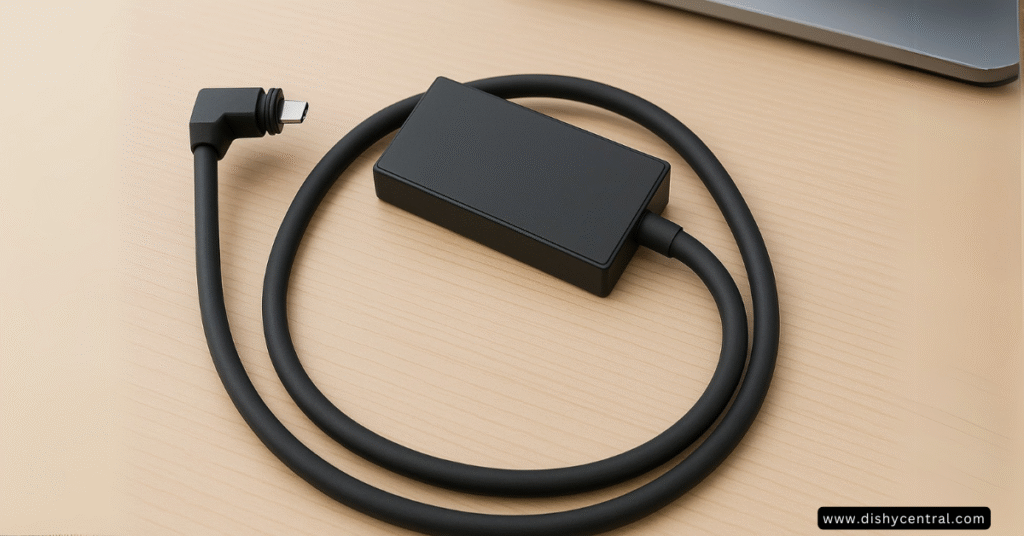
The Starlink Ethernet Adapter is a small accessory that plugs into the Gen 2 Router in place of the dish cable, then passes the dish connection through while adding a single Ethernet LAN port. If your kit uses the Gen 2 Router, this is the only official way to get a wired connection without it.
Benefits of Using an Ethernet Connection with Starlink
Enhanced stability: wired connections are generally more consistent than WiFi, which can be affected by interference, distance, and competing devices. This matters most for activities that suffer badly from dropped packets, like online gaming, video calls, and streaming.
Potentially faster performance: a direct Ethernet connection can bypass WiFi bottlenecks, though this varies by setup, some users see little difference or even see WiFi outperform Ethernet if the WiFi radio and the Ethernet port aren’t evenly matched in capability.
Required for WiFi-less devices: some desktop computers, older game consoles, and network-attached storage (NAS) devices don’t have WiFi at all and need a physical port to get online.
Required for third-party routers and mesh systems: if you want to run your own router or a non-Starlink mesh system off a Gen 2 setup, the adapter is how you get a wired handoff point to connect it.
Compatibility: Which Starlink Systems Actually Need It
Needs the adapter: the Gen 2 Router only, including when it’s paired with a Standard Actuated, High Performance, or Flat High Performance dish, the router is what determines whether you need it, not the dish.
Doesn’t need it: Router Mini and Router 3 both have Ethernet ports built in already. The original Gen 1 Router (circular dish) has a built-in AUX port that works the same way.
A quick way to check without guessing: open the Starlink app, go to your router settings, and look at the hardware photo shown, or just look at the back of the router itself for labeled LAN ports.
Acquiring Your Starlink Ethernet Adapter
The official Starlink Shop is the primary source for the genuine adapter, with some authorized resellers carrying it too. Third-party versions are sold on Amazon; check compatibility carefully before buying one, since not all are built for the exact connector Starlink uses.
Pricing changes from time to time, historically around $25 from the official shop, check the current price before buying since Starlink doesn’t publish a fixed long-term price.
For most Gen 2 Router owners who want a single wired connection, the cost is small relative to the stability and flexibility it adds.
Setting Up Your Starlink Ethernet Adapter: A Step-by-Step Guide
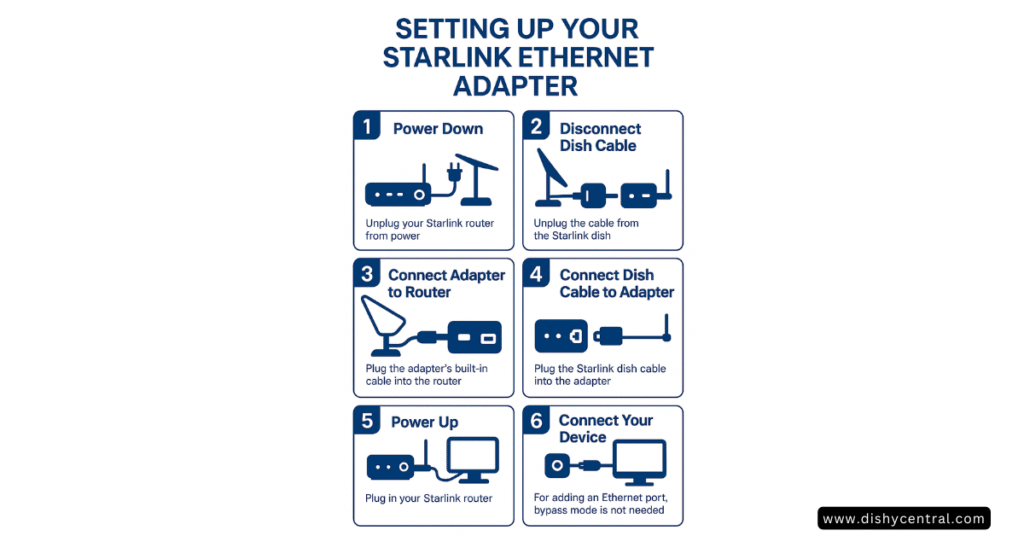
Setup is plug-and-play:
- Power down: unplug your Starlink router from power.
- Disconnect the dish cable: unplug the cable connecting your dish (“Dishy”) from the router.
- Connect the adapter to the router: plug the adapter’s attached cable into the port the dish cable was using. Make sure it’s fully seated.
- Connect the dish cable to the adapter: plug the dish cable into the adapter’s corresponding port.
- Power up: plug the router back in and give it several minutes to boot and reconnect. Check status in the Starlink app.
- Connect your device: once online, run an Ethernet cable from the adapter’s LAN port to your computer, console, or switch.
- WiFi stays on: adding the adapter for a single wired port doesn’t require bypass mode. Bypass mode (which turns off the router’s own WiFi) is only needed if you’re handing the whole network over to a third-party router.
Visual Setup Guide
For visual learners, here’s the connection sequence:
Maximizing Performance & Expanding Connectivity
Need More Ethernet Ports?
The adapter provides a single port. To connect multiple wired devices, add an unmanaged network switch to the adapter, expanding to four, eight, or more ports depending on the switch.
Cable Quality Matters
Use at least Cat 5e cable; Cat 6 is worth it for future-proofing, with better shielding against interference and headroom for higher bandwidth. A damaged or low-quality cable is a common, easy-to-miss cause of connectivity issues.
Keep Firmware Updated
Keep your router’s firmware current through the Starlink app. Updates occasionally address performance issues that can affect connected peripherals, including the adapter.
Troubleshooting Common Issues with Your Starlink Ethernet Adapter
No Internet Connection via Ethernet
- Check physical connections: make sure every cable is fully seated at the adapter, router, and device. Try a different Ethernet cable.
- Reboot the system: unplug the router, wait about 60 seconds, plug it back in, and allow 10-15 minutes to fully reconnect.
- Try a different device: rules out a bad Ethernet port on the original device.
- Check the Starlink app: look for alerts like “Disconnected” or “Unplugged or Rebooting.”
- Check for hardware issues: if multiple cables and devices all fail, the adapter itself (or, less often, the router) may be faulty. Contact Starlink support if you suspect this.
Slower Speeds on Ethernet than WiFi
Counterintuitive, but it happens. Common causes:
- Cable quality: a damaged or low-grade cable is the most common culprit.
- Device limitations: older hardware may have a 10/100 Mbps port instead of Gigabit.
- Peak-hour congestion: like any Starlink connection, expect some slowdown during busy local hours.
- A faulty adapter: some users have found a “slow Ethernet LAN link” flag in the app’s debug data, resolved with a replacement adapter from Starlink.
Intermittent Connectivity with a Network Switch
- Test a direct connection to the adapter first, to isolate whether the switch is the problem.
- Switch type matters: unmanaged switches tend to be more reliable here than “smart” or managed switches, based on user reports.
| Related: Fixing Common Starlink Problems: Your Easy-to-Follow Guide
Alternatives to the Official Starlink Ethernet Adapter
The official adapter is the most direct fix for a Gen 2 Router, but there are other approaches worth knowing about:
WiFi Extenders with Ethernet Ports
Many WiFi extenders include their own Ethernet ports. Connect the extender to your Starlink WiFi, then use its port(s) for wired devices, this still depends on a wireless link back to the router, so it doesn’t fully replace a direct wired connection.
Mesh WiFi Systems
Some third-party mesh systems can connect wirelessly to a Starlink router and offer Ethernet ports on their own nodes. Starlink’s own Mesh routers are compatible with the Ethernet Adapter too if you want a wired port on a mesh node, though they don’t support wired backhaul between nodes.
Powerline Adapters
These use your home’s electrical wiring to carry a network connection to another room. Performance varies a lot depending on your home’s wiring, worth testing before committing to this approach.
Upgrading to Router 3
If you’re on a Gen 2 Router and considering a hardware upgrade, Router 3 has two built-in Ethernet ports, removing the need for the adapter entirely.
| Related: Starlink Bypass Mode: How to Enable, Turn Off & Fix Problems
Is the Starlink Ethernet Adapter Right for You?
For Gen 2 Router owners who want a reliable wired connection for one device, or who want to hand the network off to their own router, the official Ethernet Adapter is the straightforward fix for a real gap in that hardware generation.
Worth the purchase if you:
- Have a device that requires a wired connection
- Run into WiFi interference or congestion issues
- Want to use your own router or mesh system
- Need the most consistent connection possible for gaming or work
Not needed at all if you already have a Router Mini, Router 3, or Gen 1 Router, all three already include a built-in Ethernet port.
Frequently Asked Questions
Does Starlink have an Ethernet port?
It depends on your router. Router Mini, Router 3, and the original Gen 1 Router all have at least one built-in Ethernet port. Only the Gen 2 Router doesn’t, that’s the one that needs the separate adapter.
Does the Starlink Mini have an Ethernet port?
Yes. The Router Mini built into the Mini kit has one built-in LAN Ethernet port, no adapter required.
Does the Starlink Ethernet adapter slow down my connection?
Not typically, a wired connection is usually more stable than WiFi. Some users have reported slower speeds with a specific faulty adapter unit or a low-quality cable, both fixable.
Can I use a third-party Ethernet adapter instead of the official one?
Third-party options exist, but compatibility varies since Starlink’s connector isn’t a universal standard. The official adapter is the safest bet for guaranteed compatibility.
Will the Ethernet adapter work with my original round Starlink dish?
You don’t need it. The Gen 1 Router (paired with the original round dish) already has a built-in Ethernet port labeled AUX.
Can I connect multiple devices through the Ethernet adapter?
The adapter itself provides one port. Add a network switch to expand to multiple wired connections.
Does using the Ethernet adapter disable WiFi on my Starlink router?
No. WiFi stays on unless you separately enable bypass mode, which is only needed when handing the network fully over to a third-party router.

