
Starlink usually works quietly in the background, until it doesn’t. When the app shows Offline, pages stall or video calls freeze, the cause is almost always one of a few things: a blocked view of the sky, a power or cable problem, Wi‑Fi trouble inside the home, or a plan or account limit. This guide helps you work out which one you have and what to try first, in the order that saves the most time.
How this guide was written: it is a research-based guide compiled from Starlink’s own Help Center articles (linked throughout and listed at the end) and from problems Starlink users commonly report. It is not a hands-on test of every dish and router model. App screens, menu names and hardware differ between Starlink Standard, Mini and older kits, so when a step doesn’t match what you see, follow the linked Starlink article for your hardware. Last reviewed: September 2026.
Find Your Problem Fast
Match what you are seeing to the most likely cause, then jump to the section that walks through the fix.
| What you see (tap to jump) | Most likely cause | Try this first |
|---|---|---|
| App says Offline or stays on Searching | Blocked sky view, power or cable fault, account or data limit, or an outage | Check the app for alerts, then restart |
| Internet drops for short periods | Obstructions, loose cables, weather, or a pending update | Open the obstruction view and reseat cables |
| Slow speeds | Weak Wi‑Fi, interference, obstructions, congestion, or a data limit | Compare a wired test with a Wi‑Fi test |
| Lag in games and video calls | High latency, background traffic, or Wi‑Fi problems | Test wired and pause background uploads |
| Drops during storms or snow | Heavy precipitation, snow on the dish, or wind | Check snow melt settings and the mount |
| Wi‑Fi is weak or devices won’t connect | Router placement, interference, or mesh setup | Move the router to a central, elevated spot |
| App says Disconnected | Phone is not on the Starlink Wi‑Fi, a VPN, or a third-party router | Join the router’s Wi‑Fi and turn off the VPN |
| Speeds fall on hot days | The dish or power supply is throttling to avoid overheating | Move the equipment into shade and airflow |
| Short outage in the early morning | A scheduled update reboot | Wait a few minutes; check the app |
| A “restricted” or “router unreachable” message | Plan, location or router connection issues | Read the guides: Restricted status · Router unreachable |
Starlink’s Unique Challenges: Why Issues Differ from Traditional ISPs
Starlink works differently than traditional internet services. Instead of cables running to your house, Starlink uses a network of Low Earth Orbit (LEO) satellites that communicate with your Starlink dish (often called “Dishy”) and ground stations. This technology is impressive, but it comes with its own set of challenges.
Satellites in low Earth orbit move across the sky at roughly 17,000 mph, so your dish hands your connection from one satellite to the next all day long. That design is what gives Starlink its low latency, and it is also why the dish’s view of the sky matters so much. A tree branch or a roof edge that would never affect a cable line can interrupt a satellite link.
| Factor | Cable or fiber | Starlink |
|---|---|---|
| Path to the internet | A physical line to your home | Dish to satellite to ground station |
| Obstructions | Rarely matter | Trees, roofs and poles in the dish’s view can cause drops |
| Weather | Mostly unaffected | Heavy precipitation and snow buildup can reduce performance |
| Who maintains the last stretch | The provider, up to your wall | You: the dish’s view, the cables, the power supply and the Wi‑Fi |
| Busy periods | Depends on the provider | Network congestion and your plan can affect speeds |
This guide walks through the problems in roughly the order they occur, from basic checks to advanced optimization, with tables, examples and links to Starlink’s official help articles.
The Golden Rules: Essential First Steps Before You Troubleshoot
Rule #1: Always Check the Starlink App First!
The official Starlink app is the best first diagnostic tool. Before changing anything, open it and check your status. The app provides key information, including:
- Connection status: Online, Offline, Searching or an Obstructed alert
- Alerts and outage notices: messages about problems on your account or in your area
- Obstruction view: a “Check for Obstructions” tool that shows what is blocking the dish’s view
- Performance data: graphs of latency and throughput
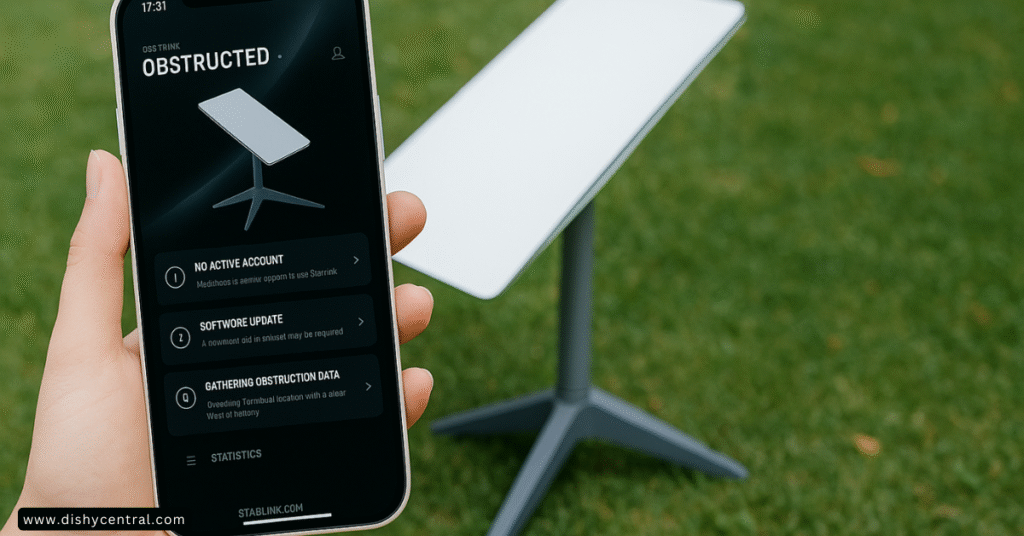
Here is what the most common statuses mean and what to do next. Labels can vary slightly between app versions and hardware.
| Status | What it means | What to do next |
|---|---|---|
| Online | The dish is connected to the network | Nothing. If the internet still feels slow, see Problem #3 |
| Searching | The dish is looking for satellites to connect to | Give it a few minutes after power-up or moving it, then check the sky view and cables |
| Offline | The dish is not connected. Starlink lists account or data limits, router connectivity, new obstructions, storms and relocation among the causes | Follow Problem #2 |
| Obstructed (alert) | Obstructions recently had a significant effect on performance | Open the obstruction view. Starlink says a complete obstruction map can take up to 12 hours to build, and alerts can be more common soon after the map is cleared |
Rule #2: The Magic Reboot (Do It Right)
Turning it off and on again fixes a surprising number of temporary glitches. Starlink’s guidance is to restart the dish and the router by unplugging them from power for 30 seconds and then plugging them back in. Give the router a few minutes to finish; its light slowly blinks white once it has rebooted.
- Unplug the Starlink dish and the router from power
- Wait 30 seconds
- Plug both back in
- Wait a few minutes and watch the app (a dish that was off can take a while to find satellites)
- Restart your own devices if they still don’t connect
| Restart type | How | When to use it |
|---|---|---|
| Standard restart | Unplug the dish and router for 30 seconds, then plug back in | First step for almost any problem |
| Full-setup power cycle | Unplug the whole setup for about 2 minutes, then plug back in | When a Starlink troubleshooting article for your problem asks for it |
| Router factory reset | Reset the router to defaults, then join the “STARLINK” Wi‑Fi network again. See Starlink’s factory reset article | Last resort. It erases your custom Wi‑Fi name, password and settings |
A few Starlink procedures call for a specific pattern of repeated power cycling. Only do that when a Starlink article for your exact situation tells you to; otherwise a standard restart is the safe choice.
Example scenario (illustrative): After a storm, the app shows Offline. You unplug the dish and router, wait 30 seconds, plug them back in and wait a few minutes. The app moves from Searching to Online, so it was a temporary glitch. If it had stayed on Searching, the next checks would be the dish’s view of the sky and the cables.
Rule #3: Check All Physical Connections
It sounds obvious, but a loose or damaged cable is one of the most common causes of Starlink network trouble. Take a few minutes to:
- Inspect all Starlink cables for damage (look for pinches, chew marks, or bent pins)
- Make sure the cable is firmly seated at the dish, power supply, and router
- Check that power connections are secure and the power supply has airflow around it
Starlink notes that an unexpected negotiated Ethernet speed between the dish and the router can indicate a poor cable connection or cable damage. Unplug and re-seat the cables at the dish and router, and make sure the connectors are free of moisture and debris.
| What to inspect | What to look for | What to do |
|---|---|---|
| The cable run | Cuts, pinches, chew marks, sharp bends, cable pinched in a door or gate | Reroute or protect it. Replace the cable if it is damaged |
| Connectors at the dish, power supply and router | Not fully seated, moisture, dirt or corrosion | Unplug, dry and clean, then plug in firmly |
| The power supply | Placed in a hot, closed or sunny spot | Move it somewhere ventilated and shaded |
| Power source | Tripped breaker, dead outlet, switched-off strip | Test with another device, or plug directly into a wall outlet |
Example scenario (illustrative): The app reports a poor connection between the dish and router. Re-seating the cable at both ends and drying a damp connector restores a normal link. The cable itself only needs replacing if the problem returns or you can see damage.
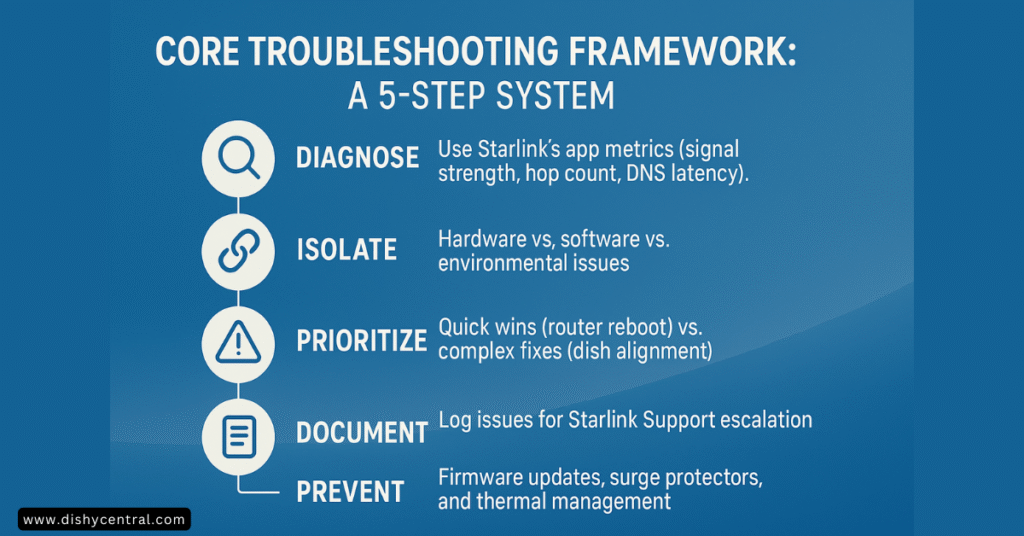
Diagnosing & Solving Common Starlink Problems
Problem #1: Frequent Disconnects & Intermittent Service
Symptoms: Your internet drops randomly for short periods, videos buffer constantly, or calls keep dropping.
Causes: This common Starlink problem usually comes from obstructions, minor outages, software updates, weather, or loose cables.
Solutions:
- Check for obstructions: use the app’s “Check for Obstructions” tool. Trees grow and seasons change, so a view that was clear last summer may not be clear now.
- Look for outages and alerts: check the app for notices about degraded service.
- Inspect cable connections: make sure every connection is firm and dry.
- Consider the weather: heavy rain, snow or storms can affect the connection.
- Note the time of day: slowdowns at busy times can point to network congestion.
Patterns often reveal the cause. Use these rules of thumb:
| Pattern you notice | Likely cause | What to try |
|---|---|---|
| Drops on windy days | Branches moving into the dish’s view, or a loose mount | Check the obstruction view; trim or move the dish; tighten the mount |
| Drops at busy evening hours | Network congestion | Compare with off-peak speeds; see our data caps guide |
| Drops after rain or snow | Weather | See Problem #5 |
| A short drop at roughly the same time overnight | A scheduled update reboot | See Problem #9 |
| Constant small drops and the app shows obstructions | A permanent obstruction | Move the dish; see our dish placement guide |
Example scenario (illustrative): Video calls drop every few minutes on windy afternoons. The obstruction view shows a patch where a tree crosses the dish’s field of view. Restarting helps briefly, but the real fix is trimming the tree or relocating the dish.
Problem #2: Complete Loss of Connection (Offline Status)
Symptoms: The Starlink app shows “Offline,” “Disconnected,” or stays on “Searching” or “Booting” for a long time.
Causes: Starlink lists account or data limits (such as a suspended account or an exceeded data limit), router connectivity problems, new obstructions, storms and relocation among the causes. Power problems, hardware faults and outages can also be responsible. See Starlink’s Suddenly Offline article.
Solutions:
- Check the app’s alerts and your account: look for a suspended account or a data limit.
- Confirm whether there is an outage: check the app and Starlink’s help center.
- Restart the system using the steps in Rule #2.
- Check your power source: make sure the outlet works and no breaker has tripped.
- Inspect the cables for damage and re-seat the connectors.
- Check the dish’s view and movement: make sure nothing new blocks the sky or the dish.
- Confirm the dish is connected to the router, then check for a wired connection if you use a third-party router.
- Factory reset the router as a last resort, then submit a support ticket if nothing changes.
Some owners try stowing and unstowing the dish to “force realignment.” Starlink documents stowing for storage or return, so treat that as an unofficial trick, not an official fix.
| Check | How | If it fails |
|---|---|---|
| Account and data | Look for alerts or a suspended account in the app or on your Starlink account page | Resolve the account issue, or wait for your data allowance to reset |
| Power | Test the outlet; check the breaker | Try another outlet; check for a failed power supply |
| Cables | Inspect and re-seat | Replace damaged cable (Starlink hardware damage article) |
| Sky view | Use “Check for Obstructions” | Trim, move or re-mount the dish |
| Router link | Make sure the dish is connected to the router | Restart; factory reset the router as a last resort |
Example scenario (illustrative): The app shows Offline in the morning. There is no outage banner, the outlet works and the cables look fine, but the account page shows the data allowance has been used up. The fix is on the account side, so no amount of restarting would have helped.
Problem #3: Slow Speeds (Poor Performance)
Symptoms: Websites load slowly, downloads take forever, and streaming quality is poor.
Causes: Obstructions, network congestion (on the Starlink network or your own Wi‑Fi), Wi‑Fi interference, router issues, or reaching a data limit.
Solutions:
- Run a speed test in the Starlink app or with a third-party service such as Ookla. See how fast Starlink should be for typical ranges.
- Compare wired and Wi‑Fi: if you can, connect a device with the Starlink Ethernet adapter or a cable, and test again.
- Check for obstructions: even minor ones can hurt speed.
- Optimize your Wi‑Fi: reposition the router, change channels to reduce interference, or add mesh coverage for a large home.
- Restart everything if you haven’t yet.
- Check data usage if your plan has data limits.
| Speed test result | What it usually means | Next step |
|---|---|---|
| Wired is fast, Wi‑Fi is slow | A Wi‑Fi problem, not a Starlink problem | Improve router placement, channel or coverage (Problem #6) |
| Both wired and Wi‑Fi are slow | A dish, plan or network issue | Check obstructions, data usage and time-of-day patterns |
| Fast off-peak, slow at busy hours | Congestion | Shift heavy downloads to off-peak hours where possible |
| Fast at first, then throttled | A data limit or plan policy | Review your plan in the app; see data caps |
Example scenario (illustrative): A house has fast wired speeds at the router but slow Wi‑Fi in a back bedroom two floors away. The dish is fine; the fix is a better router position or mesh coverage.
Problem #4: High Latency & Ping Issues
Symptoms: Lag in online games, delays in video calls, and general responsiveness issues.
Causes: Satellite distance (inherent to Starlink), network congestion, routing paths, or local network issues.
Solutions:
- Understand baseline expectations: Starlink will not match fiber for latency, but it should still be very usable.
- Check the latency graph in the app.
- Test wired connections to rule out Wi‑Fi.
- Close background applications: cloud backups and updates use bandwidth silently.
- Check for obstructions: they can cause packet loss and retransmissions.
- Review Quality of Service settings if you use your own router.
| Source of lag | Why it happens | What helps |
|---|---|---|
| Distance to the satellite | Data travels to orbit and back | Nothing to fix; set realistic expectations |
| Wi‑Fi | Interference or weak signal | Use a wired connection for gaming or work calls |
| Background traffic | Backups and updates compete with your game or call | Schedule backups for off-peak or overnight |
| Obstructions | Packet loss and retransmissions | Clear or move the dish |
| Router settings | Missing or misconfigured Quality of Service | Review QoS on a third-party router |
Example scenario (illustrative): Online games lag in the evening. A speed test shows normal speeds but high ping, and several devices on the network are uploading photo backups. Moving the backups to overnight removes the competition for bandwidth.
Problem #5: Weather-Related Issues
Symptoms: Service degrades or drops during heavy rain, snow buildup, or high winds.
Causes: Signal loss from precipitation, physical obstruction from snow, or dish movement from wind.
Solutions:
- Understand the limits: some weather effects are unavoidable with satellite internet.
- Use the snow melt feature where it applies. Starlink says its terminals can melt snow that builds up, except in extreme blizzard conditions. See Starlink’s snow melt article.
- Clear snow safely if the dish is easy and safe to reach.
- Secure the mount so wind doesn’t shift the dish.
- Wait it out when severe weather is passing.
| Weather | What it can do | What you can do |
|---|---|---|
| Heavy rain | Reduce signal quality for a while | Wait for it to pass; check that the view is clear afterward |
| Snow buildup | Physically block the dish’s view | Use snow melt settings; clear snow safely if possible |
| High wind | Move or loosen a poorly secured mount | Check the mount and cable strain afterward |
| Lightning | A safety risk | Do not touch the equipment during a storm; consider surge protection |
For more, see our guide to weather-related Starlink outages, and Starlink’s article on using Starlink in snow, rain, wind and extreme temperatures.
Problem #6: Router & WiFi Specific Issues
Symptoms: Devices can’t connect to Wi‑Fi, the signal is weak in parts of your home, or devices conflict with each other.
Causes: Poor router placement, interference, outdated firmware, or mesh setup issues.
Solutions:
- Optimize router placement: a central, elevated location away from obstacles and electronics.
- Use the Ethernet adapter for wired connections or a custom router where your hardware requires it.
- Consider a mesh system for larger or multi-level homes (see Starlink’s mesh troubleshooting article).
- Check for interference from other networks, microwave ovens and Bluetooth devices.
- Split the 2.4 GHz and 5 GHz bands if your router supports it.
| Wi‑Fi symptom | Likely cause | Fix |
|---|---|---|
| Weak signal in one room | Distance or walls between it and the router | Move the router, or add a mesh node |
| Devices keep dropping | Interference or a crowded channel | Change channels; separate 2.4 GHz and 5 GHz |
| Slow on Wi‑Fi but fast when wired | Wi‑Fi limits, not the dish | Improve coverage; use wired for important devices |
| Mesh node shows unreachable | Node too far from the main router or blocked | Move the node closer; see our router unreachable guide |
Problem #7: App Says Disconnected
Symptoms: The Starlink app says “Disconnected” and can’t show your dish or router.
Causes: Your phone is not connected to the Starlink router’s Wi‑Fi, a VPN is running, or a third-party router or networking gear is blocking the app from reaching the Starlink hardware. See Starlink’s App Says Disconnected article.
Solutions:
- Make sure your phone is connected to the Wi‑Fi network from your Starlink router.
- Turn off any VPN on your phone.
- If you use a third-party router, remember that it can block the app from reaching the Starlink hardware.
- If it still won’t connect, factory reset the router and join the “STARLINK” network when it appears.
- If you still can’t connect, submit a support ticket.
This message means your phone can’t reach the router. It does not by itself prove the internet is down. For more, see our Starlink disconnected guide.
Problem #8: Reduced Performance From Overheating
Symptoms: Performance drops on hot days, or the app reports reduced performance to avoid overheating.
Causes: Starlink says a dish approaching its maximum temperature runs at reduced performance to avoid overheating, and a power supply that passes its upper thermal threshold makes the system throttle to reduce power draw and cool down. See Starlink’s article on installing the power supply to prevent overheating.
Solutions:
- Place the equipment in a ventilated area away from direct sunlight and other heat sources.
- Relocate the power supply to a cooler, well-ventilated spot.
- Power cycle the system after moving it.
Problem #9: Brief Outage in the Early Morning
Symptoms: A short outage at about the same time overnight, with no other symptoms.
Cause: Starlink says that when a software update has downloaded, the device is scheduled to reboot at 3 AM local time, plus or minus 30 minutes. You can reboot from the app at a time that suits you if you prefer. See Starlink’s article on updating if the update doesn’t happen automatically.
What to do: Nothing, in most cases. Wait a few minutes and check that the app shows Online again.
Advanced Troubleshooting & Performance Optimization
Reading the Starlink App’s Performance Data
Depending on your app version and hardware, the app’s advanced or debug screens can show data that helps identify the root cause of an issue. Menu names change between versions, so look for a section labelled Advanced, Debug or Support. Useful metrics include:
| Metric | What it tells you | What to look for |
|---|---|---|
| Obstruction percentage | How much of the dish’s view is blocked | As low as possible. A high or rising figure points to a blocked view |
| Ping drop rate | How many test pings are lost | A low rate is healthy. A high rate points to obstructions, weather or interference |
| Latency graph | Round-trip time over time | Sudden spikes that line up with your lag or drop-outs |
| Throughput graph | Download and upload over time | Dips that match busy hours or obstructions |
Optimizing Your Local WiFi Network
A strong Starlink connection means little if your local network is poorly set up:
| Area | What to do | Why it helps |
|---|---|---|
| Router placement | Central location, elevated (on a shelf rather than the floor), away from thick walls and other electronics | Better coverage and less interference |
| Ethernet adapter | Use a wired connection for critical devices and for custom routers | More stable than Wi‑Fi |
| Mesh | Consider it for larger or multi-level homes and properties with signal-blocking features | Removes dead zones |
| Interference | Use a Wi‑Fi analyzer app, keep the router away from microwaves and cordless phones, and change channels if needed | Reduces dropped connections |
Bypassing the Starlink Router
Some users prefer to use their own router with Starlink, for more features, better Wi‑Fi coverage or advanced network management. Bypass mode is enabled from the Starlink app on supported hardware. Steps change with app versions, so follow our Starlink bypass mode guide for current instructions.
- Set your router to obtain its WAN settings by DHCP
- Consider IPv6 support if you need it
- Adjust firewall settings appropriately
Understanding Firmware Updates
- Updates are downloaded automatically and applied with a reboot. Starlink schedules that reboot for 3 AM local time, plus or minus 30 minutes, and you can reboot from the app to apply it earlier
- Expect a short interruption while the device reboots
- If an update doesn’t install automatically, follow Starlink’s update article
Proactive Measures & Best Practices
Optimal Dish Placement
Proper dish placement is crucial for reliable service. Always make sure the dish has a clear view of the sky, particularly to the north if you are in the Northern Hemisphere. Our dish placement guide goes into more detail.
| Consider | Why it matters |
|---|---|
| Seasonal changes | Trees with leaves in summer versus bare in winter; snow accumulation areas; sun angle |
| Long-term planning | Future construction, tree growth and new obstructions |
Cable Management & Protection
| Risk | Protection |
|---|---|
| Lawn equipment and foot traffic | Use conduit for buried cable; secure above-ground cable |
| Animals chewing the cable | Use cable guards; keep connections elevated where possible |
| Water ingress | Use drip loops; seal entry points into buildings |
Regular App Checks
| Task | How often | Why |
|---|---|---|
| Glance at the app’s status and alerts | Weekly | Catches new obstructions or account notices early |
| Check the obstruction view | Monthly, and after trees leaf out or grow | Spots slow changes before they cause drops |
| Inspect cables and mount | After storms and seasonally | Finds damage early |
| Review data usage | Monthly, if your plan has limits | Avoids surprises |
Keeping Your Network Updated
- Router firmware: keep any custom router updated and apply security patches.
- Device updates: keep computers, phones and smart devices current.
- Security basics: change default passwords, use strong Wi‑Fi encryption and enable firewall features.
Understanding Your Plan’s Limitations
Know the limits on your specific service. Starlink lists an exceeded data limit or a suspended account among the reasons a dish can show Offline, so check your plan and account in the app.
- Data limits: some plans have usage limits. Monitor your usage, and see our data caps guide.
- Busy-hour policies: service can be prioritized differently in congested periods. Consider scheduling large downloads off-peak.
- Power cuts: satellite internet needs power. If outages are common where you live, see our guide to UPS options for Starlink.
When All Else Fails: Contact Starlink Support
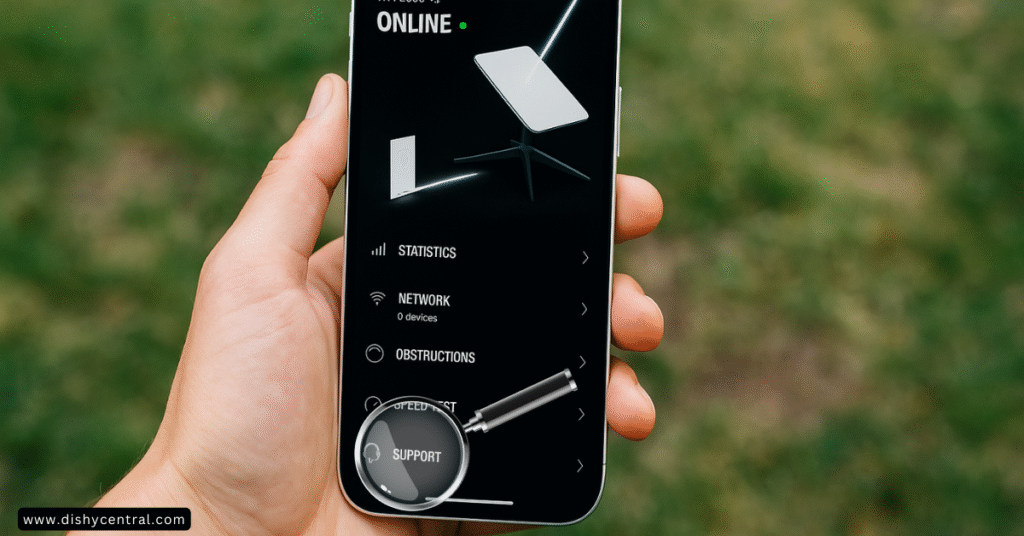
If you’ve tried everything and the problem persists, submit a support ticket to Starlink through the app or your Starlink account.
Information to Gather Before Contacting
| Gather | Details |
|---|---|
| Account details | Account number and service address |
| Problem description | When it started, exact symptoms, any pattern or frequency, and the troubleshooting steps you’ve already tried |
| Evidence | Screenshots of the app’s status or data screens, photos of the setup or any damage, and speed test results |
How to Submit a Support Ticket
- Open the Starlink app and go to Support to create a ticket, or sign in to your Starlink account on the website and open Support
- Fill in the required information and attach your evidence
- If hardware arrived damaged or is damaged, say which Starlink on your account is affected and include photos (see Starlink’s hardware damage article)
What to Expect
- Process: an initial automated response is common, followed by possible follow-up questions, then resolution or escalation
- Speed: response times vary. Complete details and photos in the first message usually save a round of back-and-forth
Community Resources
While waiting for official support, these resources can help:
- Reddit: the r/Starlink community
- Facebook: Starlink user groups
- Forums: satellite internet communities
Use community advice with caution. What works for one Starlink user may not work for another, because hardware, location and setup all differ. Where community advice conflicts with Starlink’s own help articles, follow Starlink’s.
Official Starlink Help Center Articles Used in This Guide
- Suddenly Offline – Troubleshooting
- App Says Starlink is Offline – Searching
- App Says Disconnected – Connect to your Starlink WiFi
- Obstruction
- How to fix obstructions
- Maintenance and Troubleshooting
- How do I factory reset my router?
- Additional FAQs – Troubleshooting
- What are the alerts on my Starlink app?
- How do I adjust snow melt mode?
- Using Starlink in snow, heavy rain, wind, lightning or extreme temperatures
- How do I update my Starlink if it doesn’t automatically update?
- How do I install my power supply unit to prevent overheating?
- My hardware is damaged
- Starlink Mesh Issues
- What do the lights on my Starlink hardware mean?
Frequently Asked Questions
How long should I wait after restarting Starlink?
Unplug the dish and router for 30 seconds, plug them back in, and give the router a few minutes. Its light slowly blinks white once it has finished rebooting. A dish that was powered off may take longer to find satellites.
Why does my Starlink say “Searching”?
“Searching” means the dish is looking for satellites to connect to. It is normal shortly after power-up or moving the dish. If it doesn’t clear, check the dish’s view of the sky, inspect the cables and follow Problem #2.
Why does my Starlink go offline overnight?
If a software update has downloaded, Starlink schedules a reboot for about 3 AM local time (plus or minus 30 minutes). The outage is usually short. You can reboot from the app at a more convenient time.
Can bad weather knock Starlink offline?
Heavy precipitation, snow buildup and wind can all reduce performance. Starlink’s terminals can melt accumulated snow except in extreme blizzards. Our bad weather guide covers this in detail.
Should I factory reset my router?
Only as a last resort. A factory reset erases your custom Wi‑Fi name, password and settings. Afterward, join the “STARLINK” network when it appears. See Starlink’s factory reset article in the list above.
Does “Disconnected” in the app mean my internet is down?
Not necessarily. It means your phone can’t reach the Starlink router. Join the router’s Wi‑Fi, turn off any VPN, and remember that third-party routers can block the app. See Problem #7.
Conclusion
Troubleshooting common Starlink issues doesn’t have to be frustrating. With a systematic approach you can identify and fix most problems quickly:
- Start with the Starlink app: it is your primary diagnostic tool
- Restart the right way: unplug the dish and router for 30 seconds, then wait a few minutes
- Check physical connections: the simplest explanation is often the right one
- Understand your environment: obstructions, weather and interference all matter
- Optimize your setup: good placement and configuration make a big difference
Remember that Starlink, while impressive, is still a satellite internet service with inherent limits. With realistic expectations and the steps in this guide, you can keep interruptions to a minimum.
Spotted something that looks out of date or found a fix that isn’t listed? Let us know through our contact page.

